AI Label grew out of customer requests: first custom code, then a reusable extension.
AI Labelling for Contao: AI Label
Our AI Label extension manages AI labelling once per file in the Contao file manager. The label then appears wherever the file is used, without you touching a template. Built for images and videos that need labelling under Art. 50 of the EU AI Act.
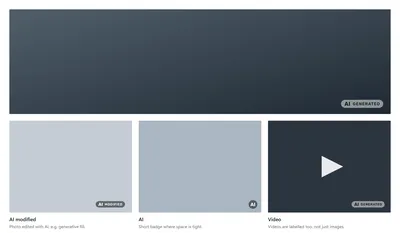
How do you manage AI labelling in the file manager?
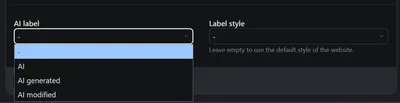
Open the file manager, edit an image or video, go to the AI label section. Two fields, once per file:
| Field | Values | Note |
|---|---|---|
| AI label | – / AI / AI generated / AI modified | matches the EU icons AI, AI GENERATED, AI MODIFIED |
| Label style | – (website default) / Black / Black, transparent background / White / White, transparent background | empty = default style, out of the box "White, transparent background" |
How do you install AI Label?
From Contao 5.3. Install via Composer, then run contao:migrate. The migration creates the columns for the two fields. You don't need any configuration: the extension runs with default values and loads its own CSS.
composer require vonheldenundgestalten/contao-ai-label
vendor/bin/contao-console contao:migrate
What does AI Label cover and what doesn't it?
| Covered automatically | Not covered |
|---|---|
Insert tags {{picture}}, {{figure}}, {{image}} |
CSS background images |
Templates with $this->insert('image', …) |
<img> tags written directly in the HTML |
the native <video> element |
Twig elements using the _figure component |
| external videos (YouTube, Vimeo) |
For the cases that aren't covered, you place the label yourself with the insert tag {{ai_label::<uuid or path>}} wherever you need it. Example with a freely chosen path: {{ai_label::files/images/workshop.jpg}}.
How do you adjust the appearance with CSS?
The label sits at the bottom right and scales with its parent element. If the image has a caption, it moves to the top right. You set custom properties on any ancestor:
| Property | Effect | Default |
|---|---|---|
--ai-label-size |
Height relative to the width of the parent element | 11% |
--ai-label-min |
smallest height | 1.75 rem |
--ai-label-max |
largest height | 3.25 rem |
--ai-label-top, --ai-label-left |
Distance from the top and left edge | auto |
--ai-label-right, --ai-label-bottom |
Distance from the right and bottom edge | 0.25 rem |
/* Example: smaller label than the default */
.teaser-grid {
  --ai-label-size: 9%;
  --ai-label-max: 2.5rem;
}
How do you change or switch off the label for a single image?
Directly where you embed it, without changing the file's labelling. off (also 0, false, none) hides the label. Allowed styles: black, black_transparent, white, white_transparent. Only hide it if the file really doesn't need labelling.
{{picture::<uuid>?size=13&ai_label=off}}      no label
{{picture::<uuid>?size=13&ai_label=white}}    different style
<video data-ai-label="off" …>                 label off for the video
How do you configure AI Label?
Use the key contao_ai_label in config/config.yaml. The values below are the defaults, so you only change what should differ. With inject_css: false you style the .ai-label class yourself. For different markup, extend AiLabelRenderer and point the service to your class.
# config/config.yaml
contao_ai_label:
    # allowed: black, black_transparent, white, white_transparent
    default_style: white_transparent
    inject_css: true        # false: style .ai-label yourself
    auto:
        insert_tags: true   # picture, figure, image
        image_template: true   # $this->insert('image', …)
        video: true         # <video> elements
Where can you find AI Label?
Source code, issues and README: GitHub. Installation via Composer: Packagist. Search within the Contao ecosystem: Contao Extension Store. If something is missing or doesn't work, we'd be glad to get an issue or a short message.
Frequently asked questions about AI Label
-
Yes, for the native
<video>element. It gets the label automatically once the file is labelled in the file manager. External videos such as YouTube or Vimeo aren't picked up automatically, so there's the insert tag{{ai_label::<uuid or path>}}for them. -
Twig elements using the
_figurecomponent aren't picked up automatically. Here, too, you use the insert tag{{ai_label::<uuid or path>}}. The extension does cover templates with$this->insert('image', …), though. -
Yes. For insert tags, append
ai_label=off, for example{{picture::<uuid>?size=13&ai_label=off}}. On the<video>element, setdata-ai-label="off". The file's labelling in the file manager stays untouched. -
No, we can't promise that. AI Label helps with the visible labelling and with recording per file whether AI was involved. The extension doesn't create a machine-readable marking, and it gives no legal guarantee. The legal assessment remains a case-by-case question.
Last updated: 01.10.2026